Ask any wedding photographer about album selection and you will hear the same stories. The pen drive that came back three months later. The Google Drive folder with 2,000 photos and 400 comments that say "this one". The WhatsApp message listing "DSC_2344, 2351, 2360 … and the one where mummy is laughing". The bride who picked 80, the mother who picked another 60, and the groom who said "whatever she chose". And the editor who finally gets a list, only to find half the numbers don't match.
Photo selection is where many studios lose weeks — and where the client's experience, so good on the wedding day, quietly goes sour. It doesn't have to be this way. A proper online proofing gallery turns selection into something clients actually enjoy: they open a private gallery on their phone, tap to favourite and select, see exactly how many they have picked, and submit when they are done. You get a clean, final list that drops straight into Lightroom.
This guide covers how to run album selection professionally — what to upload, how to set limits and deadlines, what the client experience should be, how to review and lock a selection, and how CaptureBee client galleries handle each step.
What good photo selection looks like
Before we get into the how, here is the standard to aim for:
- One place. Every photo the client can choose from, in one gallery — not scattered across drives and chats.
- Easy on a phone. Most clients will choose on their phone, often sitting with family.
- A clear limit. The album holds 80 photos; the client can see "62 / 80" at all times.
- A clear end. The client submits when done; after that, the list doesn't change unless you allow it.
- An exact list for you. File names that match your catalogue, ready to filter in Lightroom.
- Private. Only the family sees the photos, and the link stops working after a set date.
Before you share: decide what to upload
Upload selects, not everything
Do not send 3,000 unculled frames. Cull first: remove duplicates, blinks, misfires and near-identical bursts. For a wedding, clients typically choose from a few hundred to around a thousand photos; for a pre-wedding shoot, a hundred or two. Fewer, better photos mean faster decisions and happier clients.
Light edits help clients choose
Clients judge photos emotionally. A basic colour and exposure pass on the gallery photos makes them easier to love — and easier to choose. Save detailed retouching for the photos they actually select.
Keep file names stable
The selection list you get back will be file names. Upload with the same names as in your Lightroom catalogue — don't rename on export — so the list matches exactly.
Upload once, previews are automatic
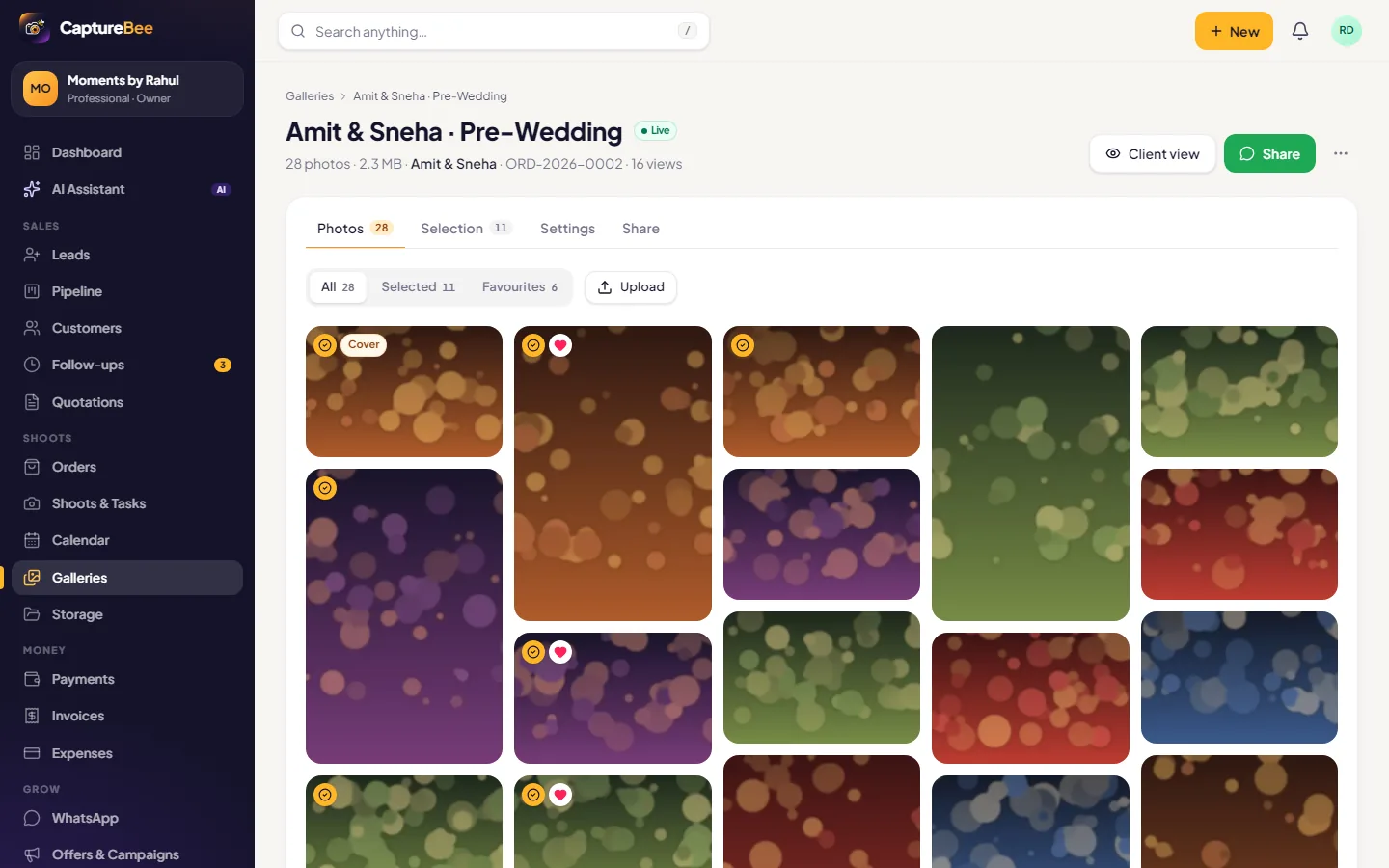
In CaptureBee you upload photos to a gallery and fast thumbnails and full-screen previews are generated automatically, so the gallery loads quickly even on mobile data. Uploads go in small chunks, so a dropped connection doesn't mean starting again.
Set the rules before the client starts
Most selection problems come from unclear rules. Decide and communicate three things:
- The limit. How many photos fit the album? Say it plainly: "Please select up to 80 photos for your album."
- The deadline. "Please submit your selection by 15 January so we can deliver the album on time." Without a deadline, selection can drag for months — and so does your balance payment.
- What happens after. "Once you submit, we'll review and lock the selection and start designing your album. Extra photos can be added at ₹X per sheet."
Gallery settings that matter
Every CaptureBee gallery has its own settings:
| Setting | What it does | Recommended for selection |
|---|---|---|
| Message for your client | A note shown on the gallery | A warm line + the limit and deadline |
| Password | Optional password, shared separately | On for weddings with many guests' photos |
| Expires on | The link stops working after this date | 4–8 weeks after sharing |
| Photo selection | Lets the client pick photos for the album | On |
| How many photos can they select? | The selection limit | Your album capacity, e.g. 80 |
| Allow downloads | Single photos or a zip | Usually off until final delivery |
| Download size | Full resolution or web size | — |
| Watermark previews | Your name across full-screen previews | On if you are worried about screenshots |
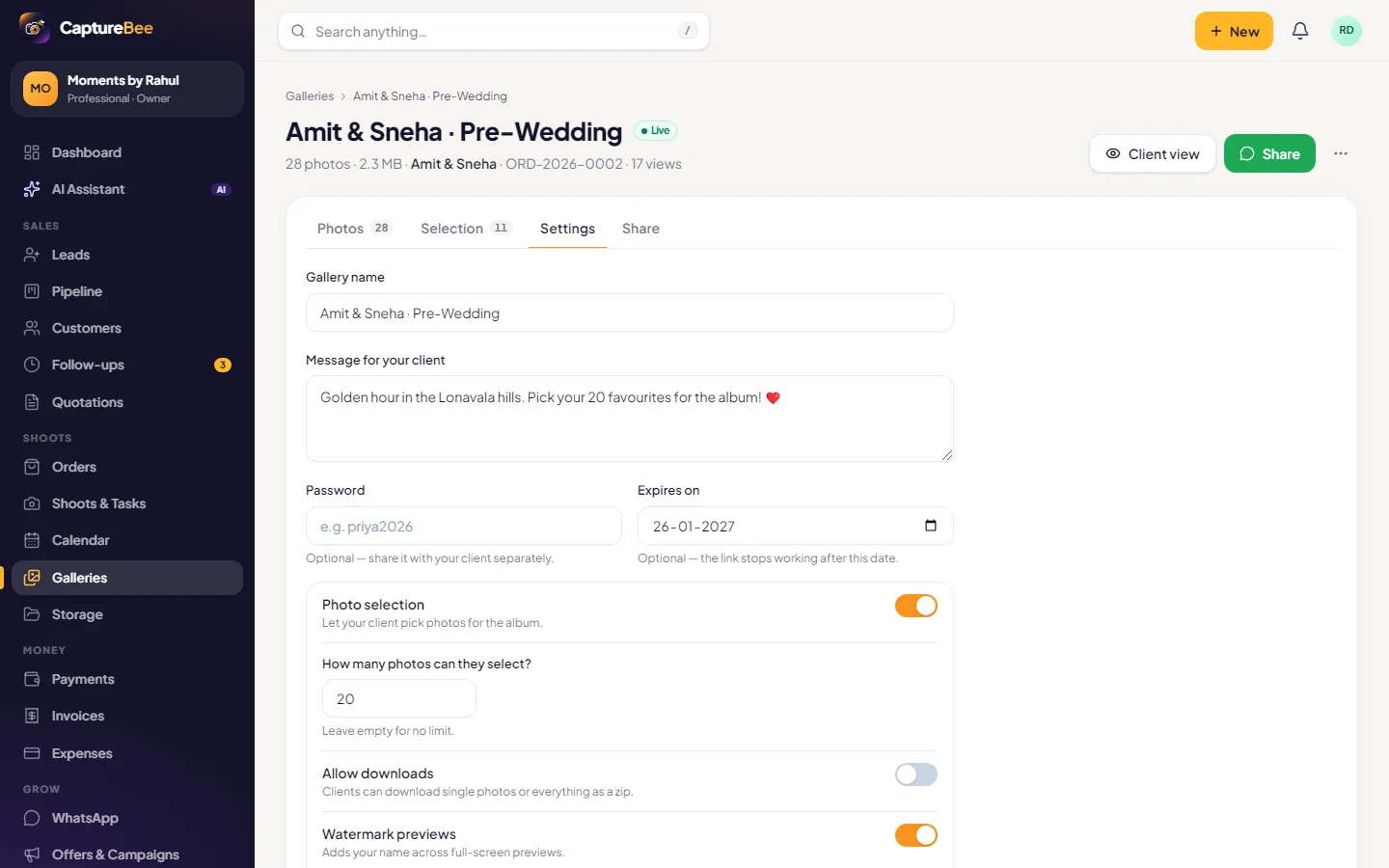
Tip: Turn downloads off while the client is selecting, and turn them on (or use a final-delivery link) once the edited photos are ready. Otherwise clients share unedited photos before the real ones arrive.
Share it beautifully
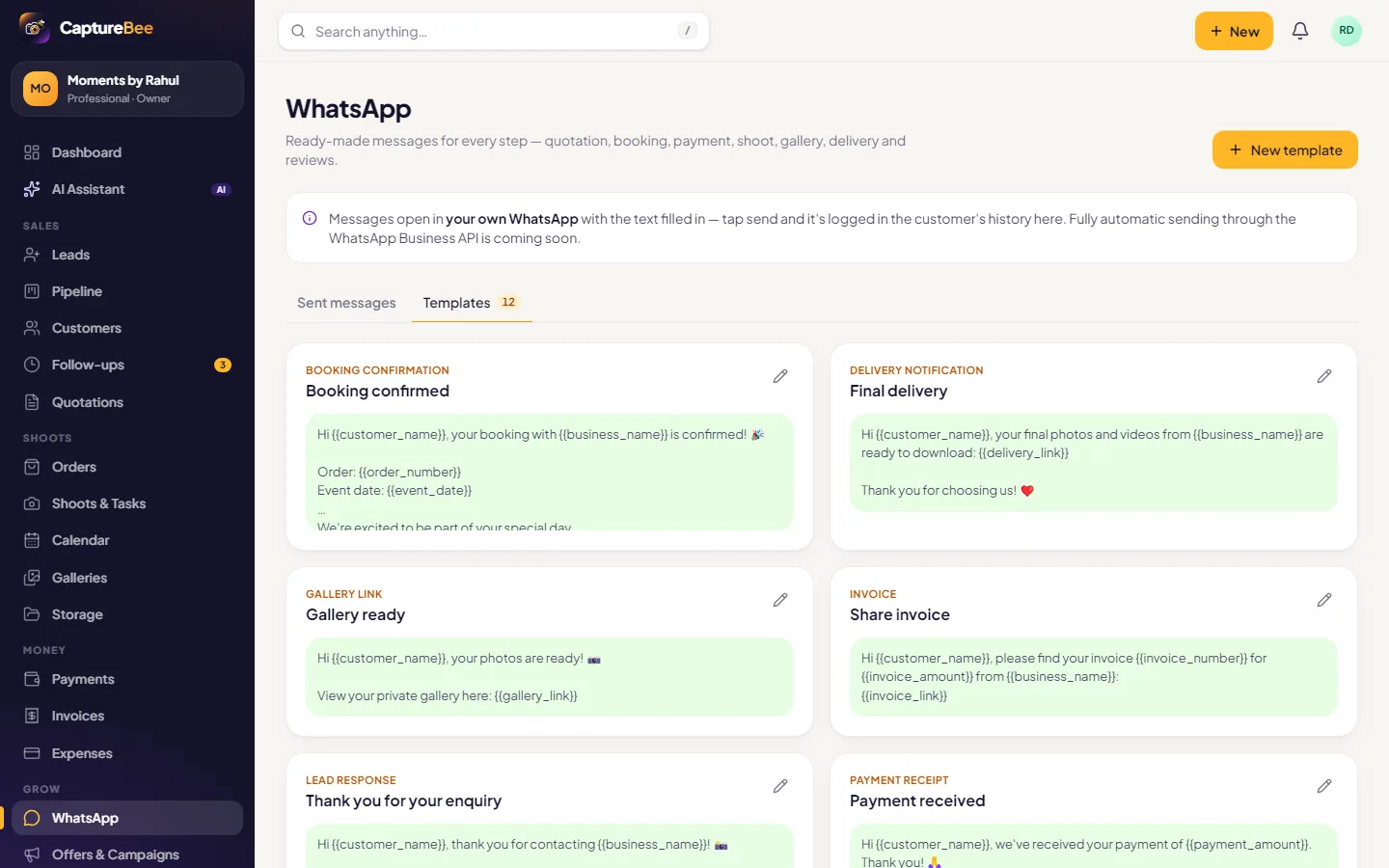
Share the gallery the way your clients already communicate — on WhatsApp. CaptureBee's Gallery ready template:
Hi {{customer_name}}, your photos are ready! View your private gallery here: {{gallery_link}}
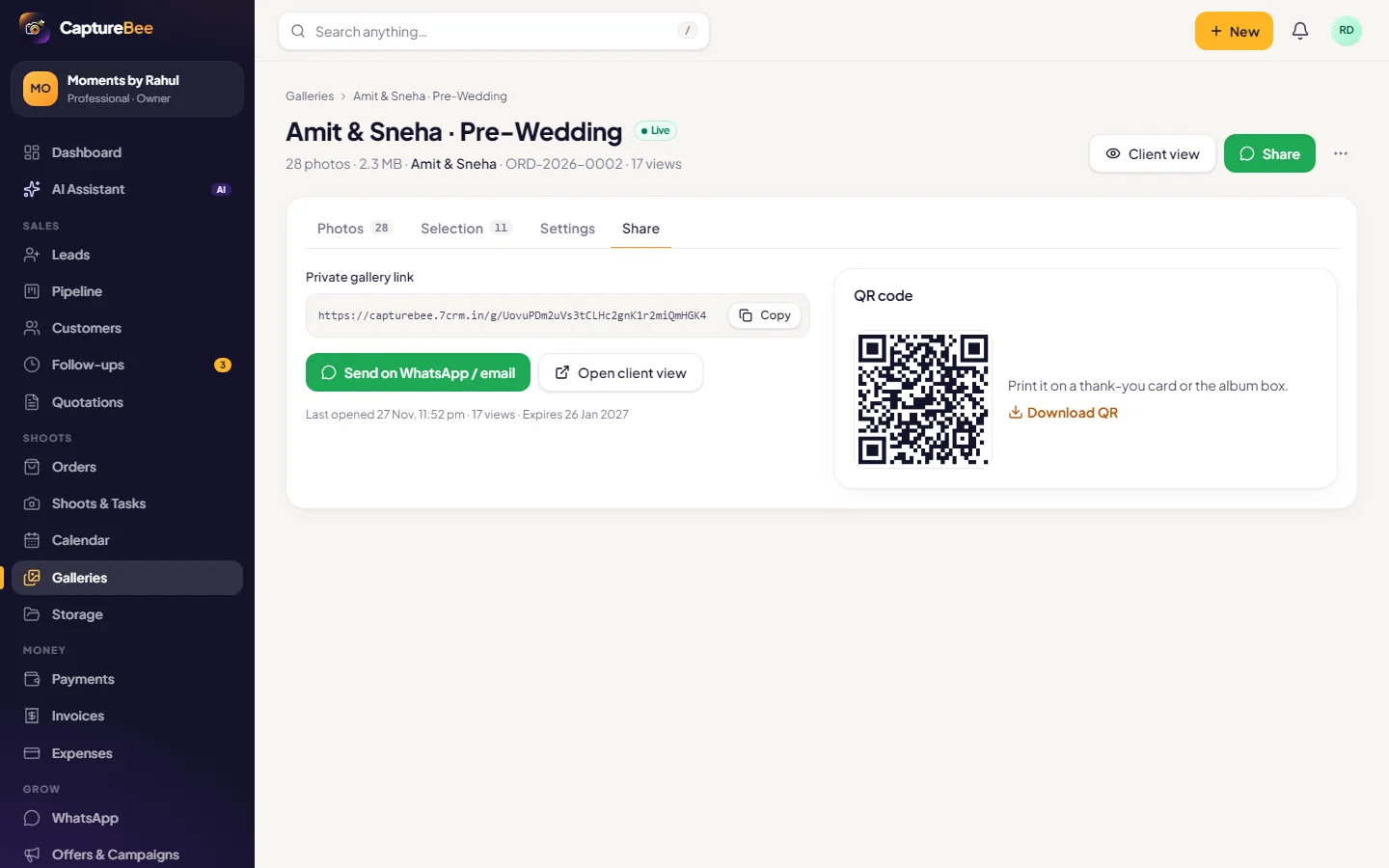
The Share tab also gives you the private link to copy, an email option, and a QR code you can download and print — on a thank-you card or the album box.
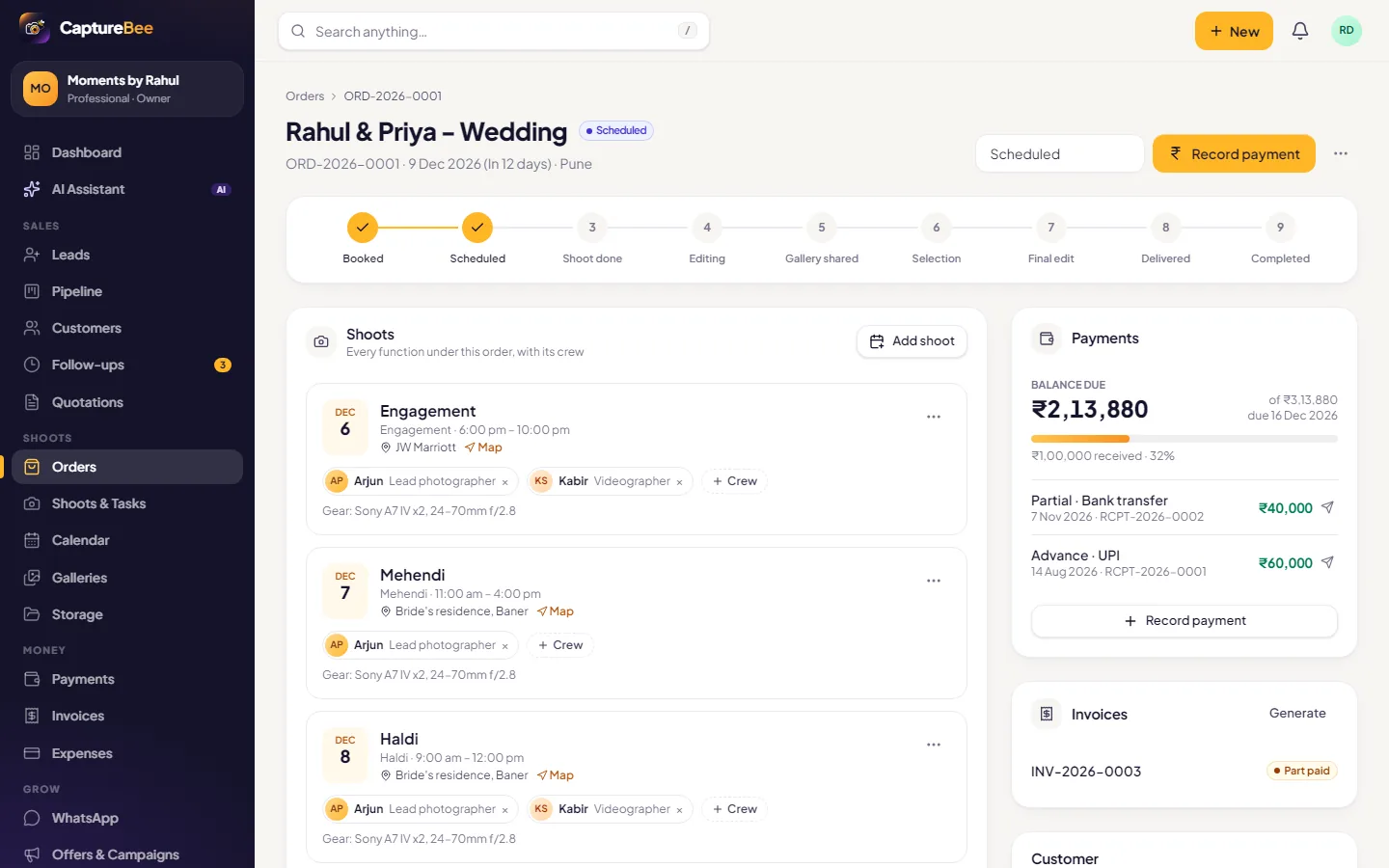
Sharing a gallery also moves the order forward to Gallery Shared automatically, and the lead's card moves to Gallery Ready on your pipeline — no manual updates.
The client's experience
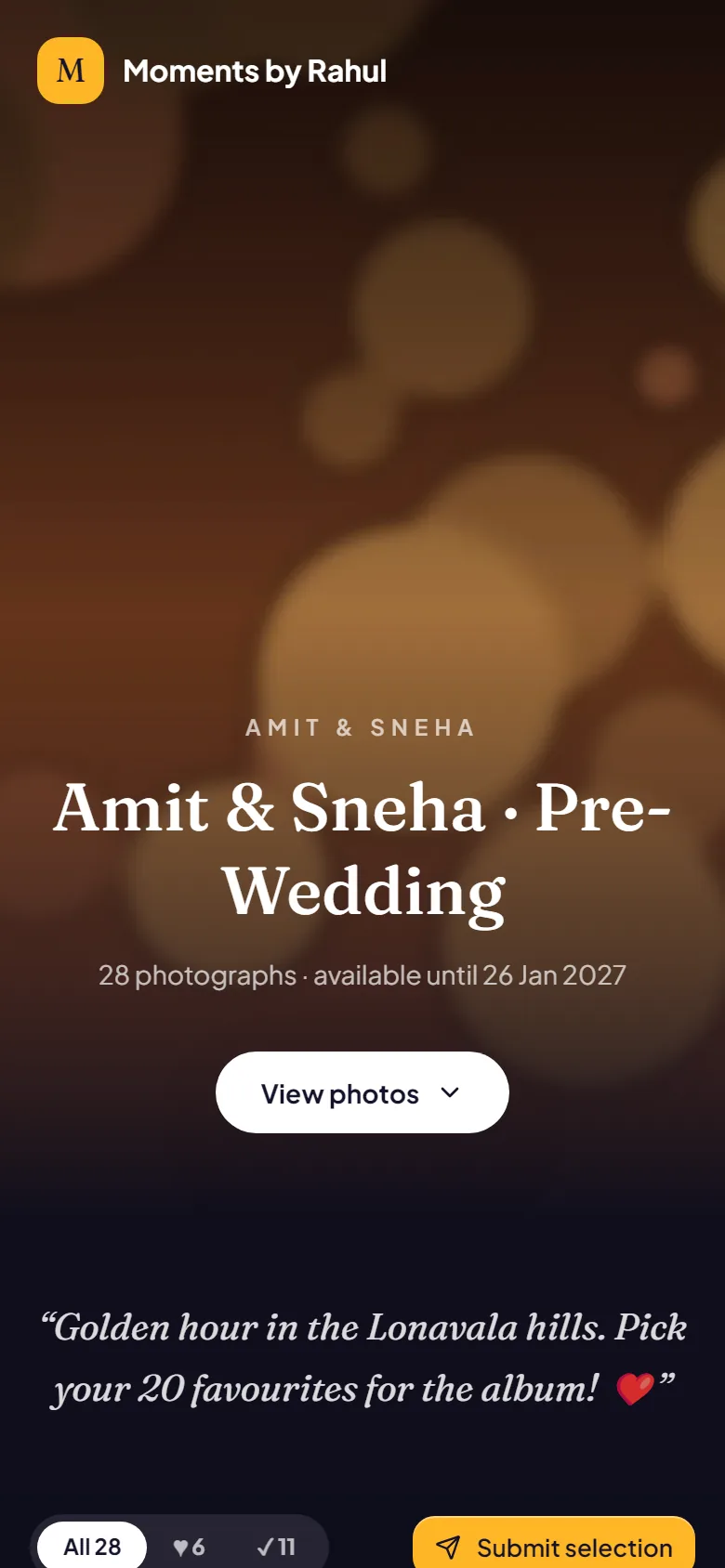
This is what makes or breaks selection. When the couple opens the link, they see a full-screen cover with their names, the number of photos, how long the gallery is available and your message. One tap on View photos opens the grid.
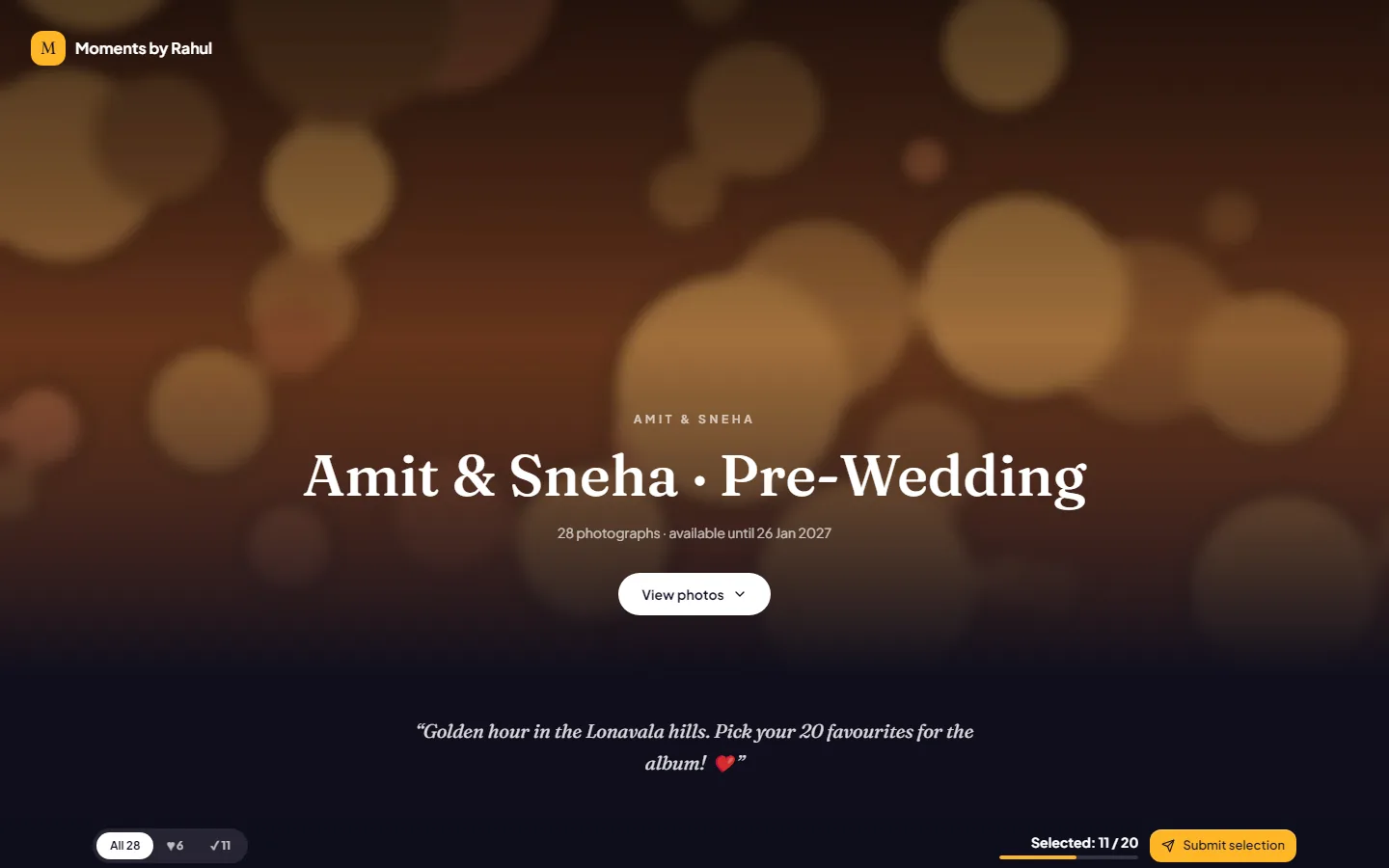
In the grid, they can:
- Favourite photos with a heart — a shortlist of the ones they love
- Select photos for the album with a tick
- Filter between all photos, favourites and selected
- Open any photo full-screen and swipe through
- Leave a comment on a photo — "please remove the guest on the left", "can this be black and white?"
- See their count at all times: "Selected: 11 / 20"
- Submit the selection when they're done
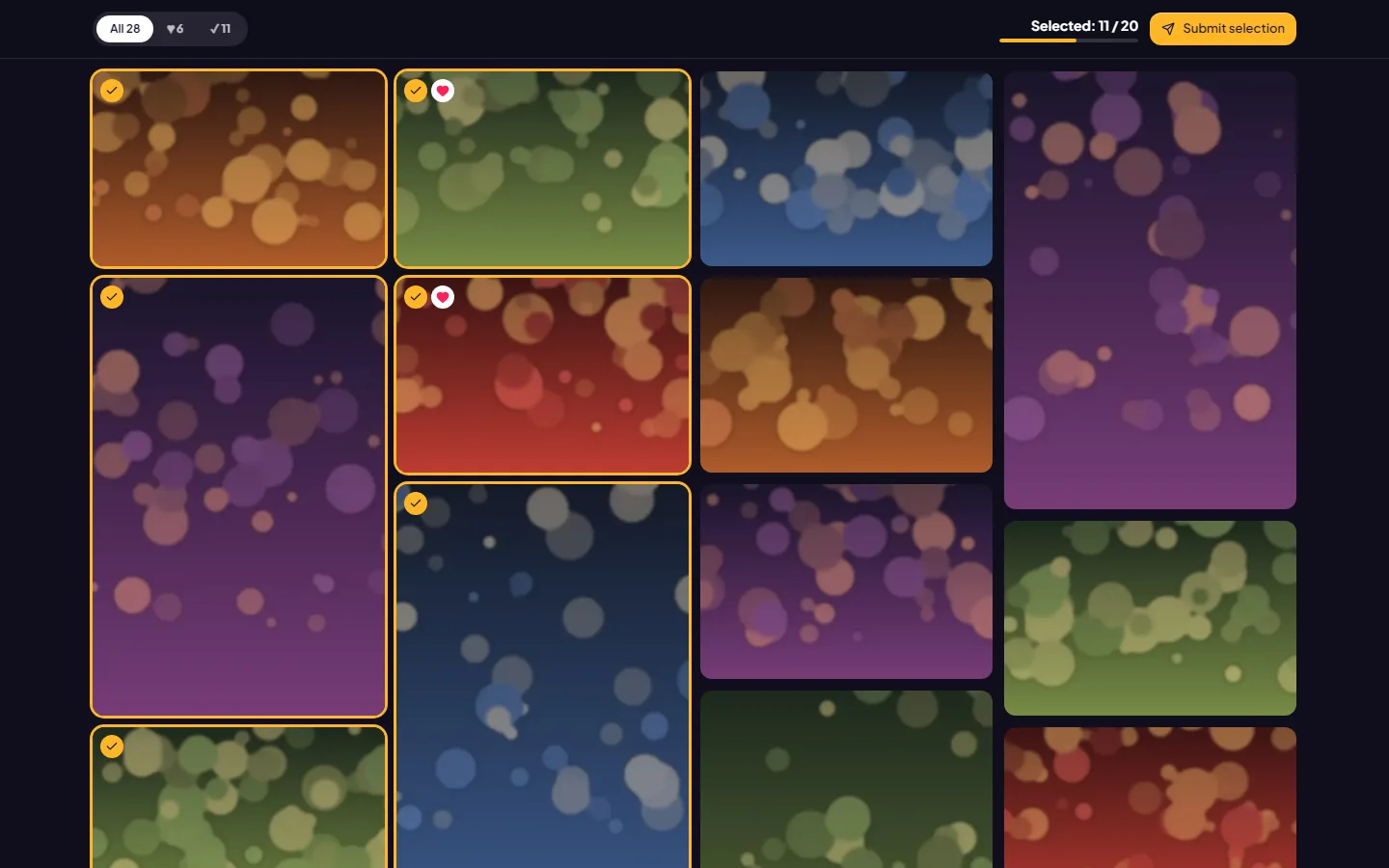
The limit is enforced: once they reach it, they can't select more without unselecting one first. That one detail ends the "we picked 140 for an 80-photo album" conversation.
The gallery works just as well on a phone, which is where most families will look at it together.
Gentle reminders
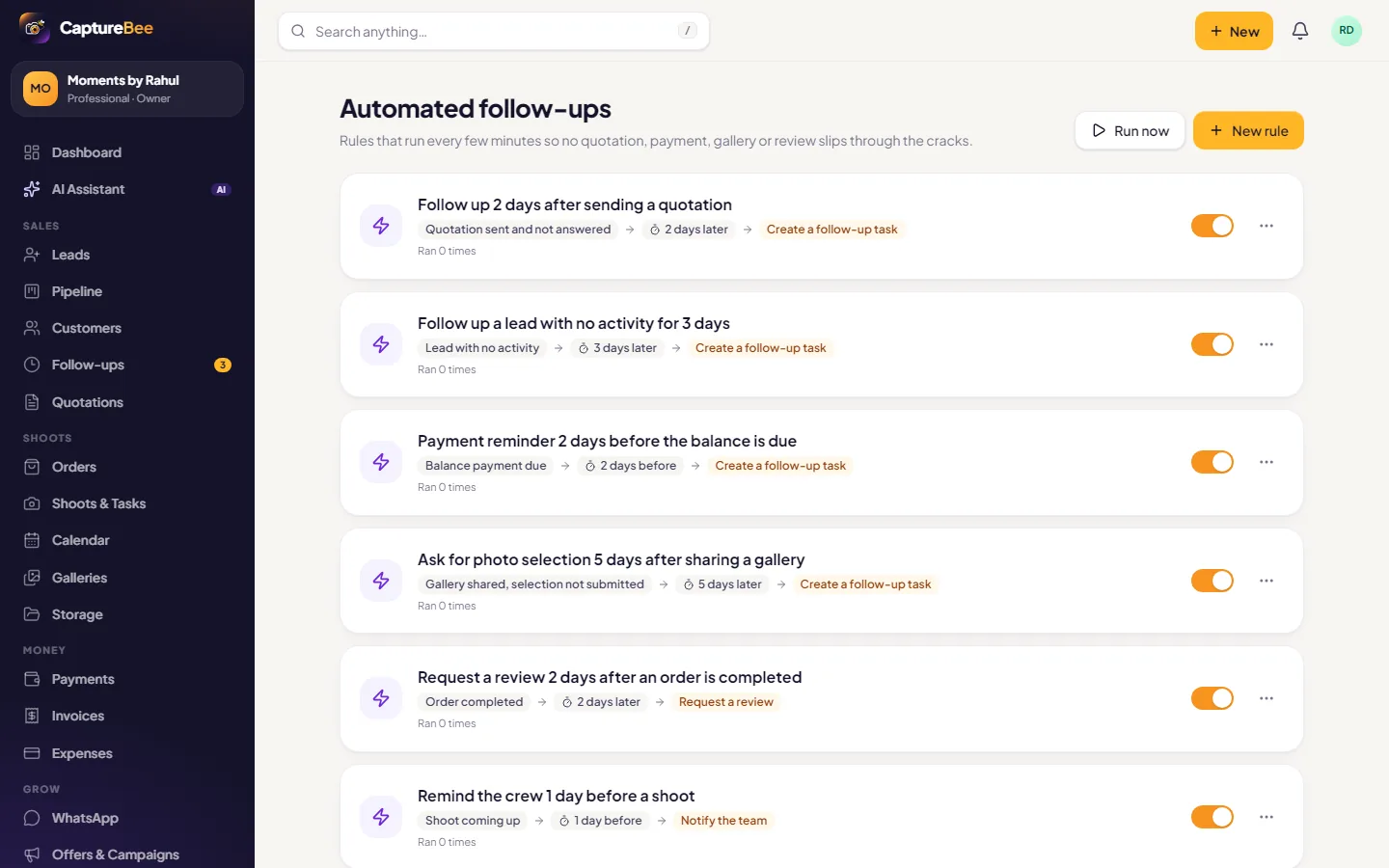
Some clients finish selection in a weekend. Others need a nudge — or three. Don't rely on memory: CaptureBee's default automation Ask for photo selection 5 days after sharing a gallery creates a follow-up for you if the selection hasn't been submitted. Send the Select your photos template with one tap:
Hi {{customer_name}}, a quick reminder to pick your favourite photos ({{selection_limit}}) from your gallery so we can start on your album: {{gallery_link}}
More in automations every photography studio should switch on and WhatsApp templates for photographers.
Reviewing, approving and locking
When the client submits, you get a notification (and an email). Open the gallery's Selection tab to see what they chose: the count against the limit, their favourites, and any comments.
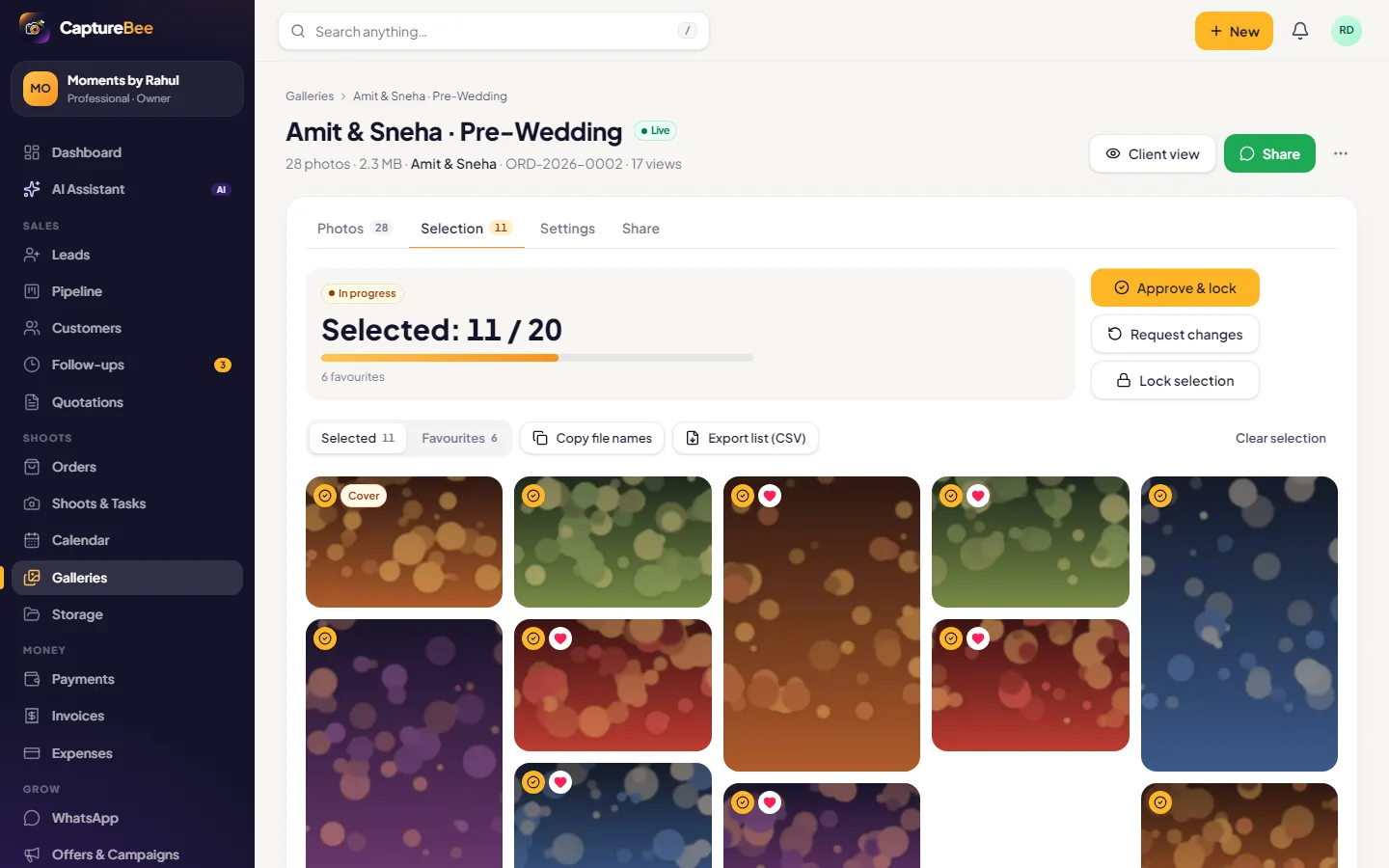
You have three choices:
- Approve & lock. The selection is final; the client can no longer change it. The order moves to Editing Final automatically.
- Request changes. Maybe they selected 12 of 20 and you think they meant to finish, or a comment needs discussion. The selection reopens for them.
- Lock selection without approving — useful while you discuss something with the family.
From selection to Lightroom in a minute
The most practical button on the page: Copy file names. It copies the selected photos' file names (without extensions), separated by commas. In Lightroom Classic, open the Library Filter, choose Text → Filename → Contains, and paste — Lightroom shows only those photos. Flag them or add them to a collection, and editing starts with exactly what the client chose.
Prefer a spreadsheet, or working with an album designer? Export list (CSV) gives you the selection as a file.
No more matching numbers from WhatsApp messages, no more missing photos.
When family disagrees
Indian weddings involve families, and families have opinions. A few approaches that help:
- One gallery, one submission. Share the same link with the family, but make it clear that the couple submits the final list.
- Use favourites as a shortlist. Everyone hearts their picks; the couple then selects from favourites.
- Use comments for requests on specific photos, instead of separate messages.
- Offer extra sheets at a clear price if they truly can't fit in the limit — written in your terms, not invented in the moment.
After approval
Once the selection is approved, the rest of the workflow follows:
- Edit the selected photos — create a task with a due date for your editor.
- Design the album and share the layout for approval.
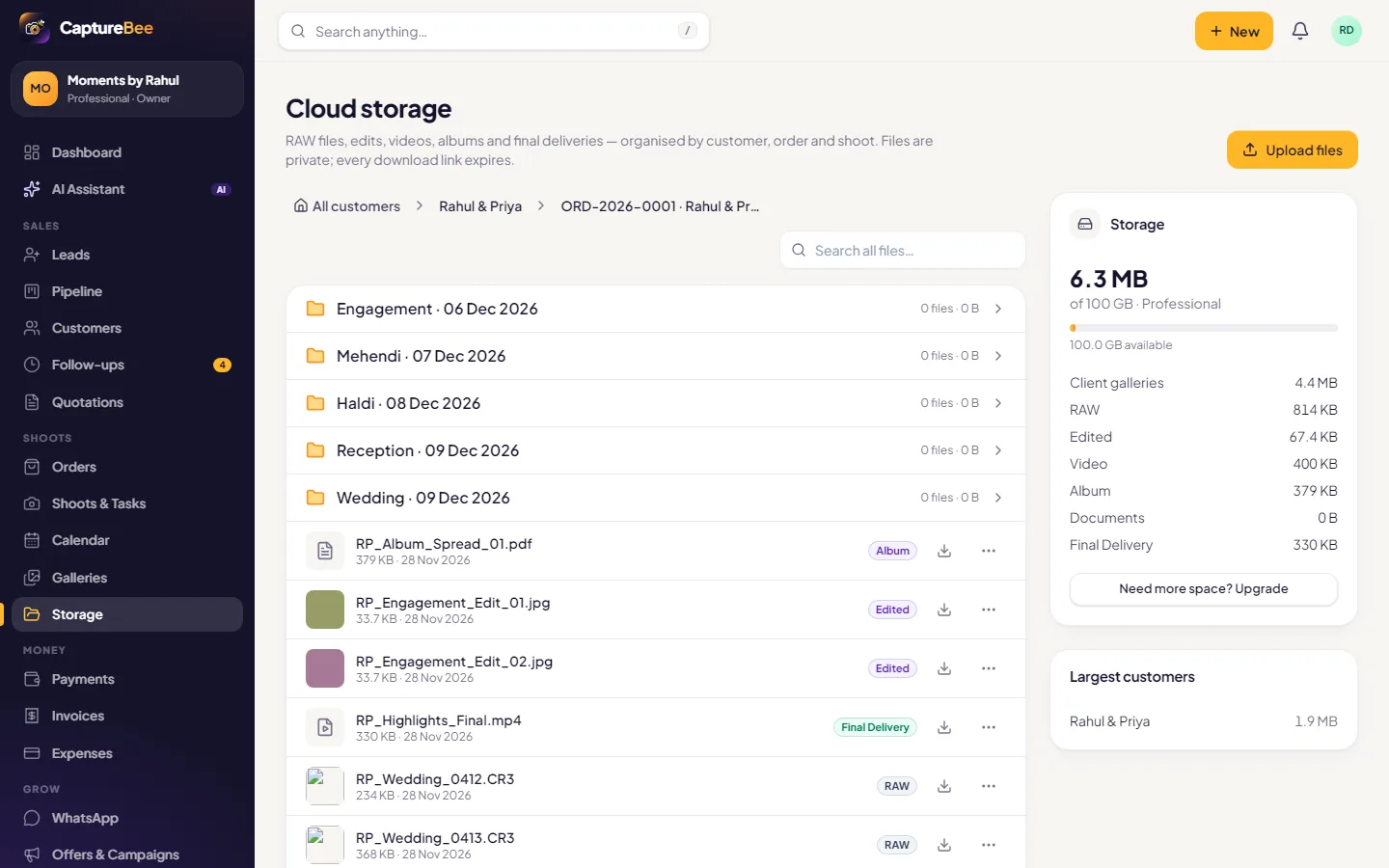
- Upload final photos and videos to the order's Final Delivery folder.
- Send the final-delivery link — see delivering photos securely.
- Collect the balance before delivery, as your terms say — see tracking advances and dues.
- Ask for a review — see getting more reviews.
How many photos to share and select
The right numbers depend on the event, your album format and your style. These ranges are a reasonable starting point:
| Event | Photos in the selection gallery | Typical selection limit |
|---|---|---|
| Wedding (2–3 days, all functions) | 800 – 1,500 | 80 – 200 (depends on album sheets) |
| Wedding (single day) | 400 – 800 | 60 – 100 |
| Engagement | 200 – 400 | 30 – 50 |
| Pre-wedding shoot | 100 – 250 | 20 – 40 |
| Birthday / family event | 150 – 400 | 30 – 60 |
| Maternity / newborn session | 40 – 100 | 10 – 25 |
| Corporate event | 150 – 500 | Often no selection — all edited photos delivered |
Two rules of thumb:
- Share roughly 5–10 photos for every one they'll select. Fewer and they feel limited; many more and selection takes forever.
- Tie the limit to the album. If an album sheet holds three or four photos, an 80-photo limit fits about 20–25 sheets. Say so in your gallery message so the number makes sense to the client.
What to write in the gallery message
The message on the gallery is the first thing clients read. Use it to set the rules warmly. A few examples:
Wedding
Your wedding gallery is here! 💛 Take your time to relive every moment. Please select up to 80 photos for your album — tap the tick on each one. You can heart your favourites as a shortlist first. Kindly submit your selection by 15 January so we can start designing your album.
Pre-wedding
Golden hour in the Lonavala hills! Pick your 20 favourites for the album ❤️ and submit when you're happy. If you'd like any photo in black and white, leave a comment on it.
Birthday
Aarav's 5th birthday, all in one place 🎈 Please choose 30 photos for prints, and submit by Sunday.
Mention the limit, the deadline and what happens next, and the selection usually arrives without a single follow-up.
After the selection: the album workflow
Approving the selection is the start of the album, not the end of the job. A dependable workflow:
- Edit the selected photos. Copy the file names into Lightroom, filter, and edit the selection in full. Create a task for your editor with a due date.
- Design the album. Group the photos by function and story — getting ready, the rituals, family portraits, the couple, the celebration.
- Share the design for approval. Upload the spreads to the order's Album folder and share them with the client. Ask for changes in one round, not ten.
- Approve and print. Note the print order and the expected delivery date in a task.
- Deliver the digital files. Upload final photos and films to the Final Delivery folder and send the delivery link — see delivering photos securely.
- Deliver the album. A printed QR code from the gallery's Share tab, slipped into the album box, lets the family open their gallery again any time it's live.
Each step can be a task on the order with an owner and a due date, so nothing stalls between steps — and the client can be told exactly where their album is.
Handling special requests
Clients often ask for things outside the plan. Agree in advance how you handle them, so you can say yes graciously — or no politely.
"Can we add more photos?" Offer extra sheets at a clear price, already in your terms ("additional photos at ₹X per sheet"). Request changes on the selection so they can add more, or raise the limit in the gallery settings.
"Can this one be retouched?" Basic retouching — skin, stray hairs, colour — is usually included. Heavy edits — removing people, swapping heads, changing backgrounds — take time; quote them as an extra.
"Can our parents choose their own album?" Create a second gallery for the parents' album with its own limit, or let them pick from the couple's favourites. Price parents' albums as add-ons in your packages.
"We changed our minds after submitting." If you haven't started designing, request changes so they can adjust. Once the album is in design, changes should be limited — and your terms should say so.
"Can we have all the photos?" Many studios deliver all edited photos digitally and use selection only for the album. Decide your policy, put it in your packages, and use the delivery link for "all photos" and the selection for the album.
Selection for different album styles
The selection limit should match the album you're making. A few common formats:
- Layflat or magazine albums with full-page spreads hold fewer photos per sheet — often 2–4. A 30-sheet album might take 80–100 photos.
- Collage-style albums fit more per sheet — 6–8 — so the same 30 sheets might take 150–200 photos.
- Parents' albums are usually smaller — 15–20 sheets — and focus on family and rituals rather than couple portraits. Run them as a separate gallery with its own limit, or let parents choose from the couple's favourites.
- Photo books for smaller shoots — pre-wedding, maternity — typically take 20–40 photos.
Tell the client how the limit relates to the album: "80 photos fill your 30-sheet album beautifully, with space for a few full-page favourites." It helps them understand why they can't pick 300.
Selection for other kinds of shoots
Selection isn't only for weddings:
- Pre-wedding: choose favourites for a small album, a framed print or a save-the-date.
- Newborn and maternity: choose which photos get full retouching, or which go into prints and frames — often the main upsell moment.
- Family portraits: choose photos for wall art and prints.
- Corporate headshots: each person chooses their best one or two from a short set. A selection limit of 2 keeps it simple.
- Product shoots: the client approves the final images before retouching. Comments on photos are useful for "change the angle" or "brighten this one".
In each case, the gallery limit and the message tell the client exactly what they're choosing for.
Tips to share with clients
A few lines of guidance make selection faster and less stressful. Add them to the gallery message, or send them with the gallery link:
- Go through all the photos once, just enjoying them. Don't select on the first pass.
- Second pass: heart your favourites. Hearts are a shortlist, with no limit.
- Third pass: select from your favourites. Use the filter to see only hearted photos, then tick the ones for the album.
- Choose a mix: rituals, family, the two of you, candid moments, details and décor.
- Use comments for any edits you'd like — "please brighten", "black and white".
- Sit with family on a laptop or a TV for the final round — it's more fun, and everyone sees the photos large.
- Submit by the date so the album isn't delayed.
Step by step in CaptureBee
- Galleries → New gallery, linked to the customer and order.
- Upload photos — previews and thumbnails are created automatically.
- Settings tab: message, password, expiry, photo selection on, limit, downloads off, watermark if needed.
- Share tab: send on WhatsApp, or copy the link or QR code.
- Client favourites, selects, comments and submits.
- You're notified — open the Selection tab.
- Approve & lock (or request changes).
- Copy file names into Lightroom, or export the CSV.
Mistakes to avoid
- Uploading unculled photos. More choice makes selection slower, not better.
- No limit. Clients will pick everything they like — which is everything.
- No deadline. Selection drags; so does your album and your balance.
- Downloads on during selection. Unedited photos end up on Instagram.
- Renamed files. Your selection list won't match your catalogue.
- Accepting changes forever. Lock the selection once approved.
A realistic timeline from wedding to album
Selection is one step in a longer chain. Here's a schedule many studios aim for, and where online selection saves time:
| When | What happens |
|---|---|
| Wedding + 1 day | Thank-you message and a few sneak peeks |
| Week 1 | Backup, cull, light edit of the selection gallery |
| Week 2 | Gallery shared with a selection limit and deadline |
| Week 3 | Selection reminder if needed; client submits |
| Week 3 | You approve and lock the selection; editing starts |
| Week 4–5 | Full edit of selected photos; album design |
| Week 6 | Album design shared for approval |
| Week 7 | Album sent for printing; final files delivered |
| Week 9–10 | Printed album delivered |
The biggest delays usually happen at two points: waiting for the client's selection, and waiting for their approval of the album design. A clear deadline in the gallery message, an automatic reminder and a single round of album changes keep both short.
Share the timeline with the couple at the start — in your terms or the booking confirmation — so they know their part in it, and so "when will our album come?" has an answer before they ask.
What not to put in a selection gallery
Curating the gallery is part of your craft. Leave out:
- Near-duplicates. Keep the best of a burst; three nearly identical photos only slow the client down.
- Unflattering moments. Mid-blink, mid-chew, awkward angles — if you wouldn't print it, don't offer it.
- Technical failures. Missed focus, heavy motion blur (unless it's intentional and beautiful).
- Private moments the family wouldn't want shared — a tearful elder, a guest who asked not to be photographed.
- Unfinished edits. Light, consistent edits only; don't show half-retouched photos.
A tighter gallery makes the couple's job easier and makes your work look better. The test: every photo in the gallery should be one you'd be happy to see in the album.
Quick checklist
- The gallery holds culled, lightly edited photos only
- File names match your Lightroom catalogue
- Selection is on, with a limit that matches the album
- The gallery message states the limit, the deadline and what happens next
- Password and expiry are set; downloads are off during selection
- The selection reminder automation is on
- The submitted selection is approved and locked before editing starts
- File names are copied into Lightroom or exported as CSV
- The album timeline is shared with the couple
Frequently asked questions
How do clients select photos for their album online?
They open a private gallery link, tap to select photos (and heart favourites), see how many they have picked against the limit, leave comments if needed, and submit. The photographer reviews and approves the final list.
Do clients need to create an account?
No. They open the link — and a password if you set one. Nothing to install.
Can I limit how many photos the client selects?
Yes. Set a selection limit per gallery. The client sees the count and can't go over it.
Can clients comment on photos?
Yes. They can leave a comment on any photo, which you see in the selection review.
How do I get the selection into Lightroom?
Press Copy file names and paste into Lightroom's Library Filter (Text → Filename → Contains), or export the list as CSV.
Can the client change the selection after submitting?
Only if you allow it. You can request changes to reopen the selection, or approve and lock it so it can't change.
What if the gallery expires before they finish?
You get a reminder before a gallery expires, and you can extend the expiry date at any time.
Make selection the best part, not the slowest
Album selection should feel like reliving the wedding, not doing homework. Cull first, set a limit and a deadline, share a beautiful private gallery, remind gently, and lock the final list. Your clients enjoy it, your editor gets an exact list, and your albums ship weeks earlier.
Start a free CaptureBee trial and send your next client a selection gallery. See all client gallery features, or read how to deliver photos securely.