Most photography businesses start with one person and a camera. Then the bookings grow. You bring in a second shooter for weddings, a videographer, a freelance editor during the season, an assistant to handle calls, and eventually someone to look after the accounts. Suddenly you are not just a photographer — you are running a team.
Teams multiply what a studio can do, but they also multiply what can go wrong: the editor works on the wrong selection, the second shooter goes to the old venue, the assistant promises a date that's already booked, and a freelancer who left months ago still has the shared drive link with every client's photos.
This guide covers how to organise a photography team: who does what, what each person should (and shouldn't) see, how to bring in freelancers safely, how to schedule fairly, and how to keep everyone working from the same information. It shows how CaptureBee's team roles handle it, but the principles apply whatever tools you use.
Who's on a photography team?
Even small studios have more roles than they realise — often several held by the same person:
| Role | Usually | Needs access to |
|---|---|---|
| Owner | You | Everything |
| Manager / studio lead | Senior employee | Sales, shoots, galleries, the schedule |
| Second photographer | Freelancer or employee | Their shoots and the galleries they work on |
| Videographer | Freelancer or employee | Their shoots, video files |
| Drone operator | Freelancer | Their shoots |
| Editor / album designer | Freelancer or employee | Galleries and edited files for assigned orders |
| Assistant / coordinator | Employee | Enquiries, customers, follow-ups, calendar |
| Accountant | Part-time or external | Payments, invoices, expenses, reports |
Notice the right-hand column. Very few people need everything. A second shooter needs to know where to be on Saturday; they don't need your pricing, your payments or your other clients' photos.
Four principles for a team that works
1. Everyone sees what they need — and nothing more
This is not about trust. It is about focus and about protecting your clients. A freelance editor who works with five studios should not be able to browse every wedding you have ever shot. A new assistant does not need to see what each couple paid. Less access means fewer mistakes, fewer leaks and less clutter for each person.
2. One source of truth
The venue, the timing, the crew, the selected photos, the balance — each should live in exactly one place that everyone checks. The moment details live in a WhatsApp group and a spreadsheet and someone's notebook, they will disagree.
3. Every job has an owner
Every lead, follow-up, shoot task and editing job needs one name on it. "The team" doesn't call clients back. Priya does, on Thursday.
4. Access ends when the work ends
When a freelancer finishes the season or an employee leaves, their access should end that day — not when you remember the shared drive link six months later.
Roles in CaptureBee
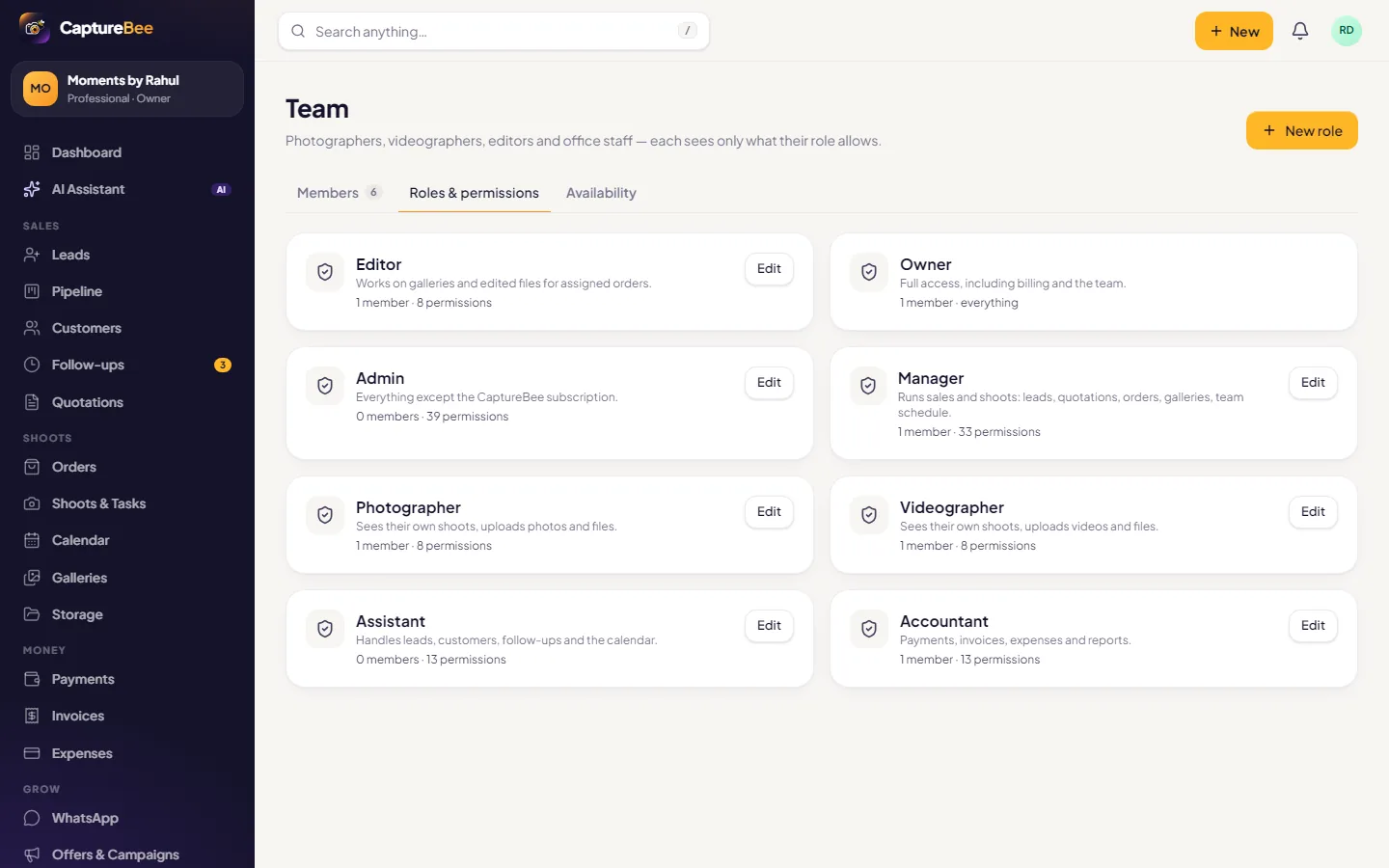
CaptureBee includes eight ready roles built around how studios work:
| Role | What they can do |
|---|---|
| Owner | Full access, including billing and the team |
| Admin | Everything except the CaptureBee subscription |
| Manager | Runs sales and shoots: leads, quotations, orders, galleries, team schedule |
| Photographer | Sees their own shoots, uploads photos and files |
| Videographer | Sees their own shoots, uploads videos and files |
| Editor | Works on galleries and edited files for assigned orders |
| Assistant | Handles leads, customers, follow-ups and the calendar |
| Accountant | Payments, invoices, expenses and reports |
"All" versus "assigned"
Several permissions come in two flavours: see all leads, orders and shoots, or see only those assigned to the person. That is what lets a photographer log in and see their shoots and orders, while a manager sees everything. Crew roles (Photographer, Videographer, Editor) use the "assigned" versions.
Custom roles
If none of the eight fit — say, a senior photographer who also sends quotations, or an assistant who can record payments — create your own role and tick the permissions it should have. Permissions are grouped so they are easy to scan: Dashboard, Leads, Customers, Sales, Orders, Shoots, Money, Galleries, Storage, Communication, Marketing, Reports, AI, Team and Settings. Examples:
- See leads assigned to them vs See every lead and the pipeline
- Create and send quotations
- Record payments and refunds
- Create galleries, upload photos, review selections
- Upload and delete files, create delivery links
- Send WhatsApp messages and emails to customers
- Invite people and change roles
- See the activity log
Inviting your team
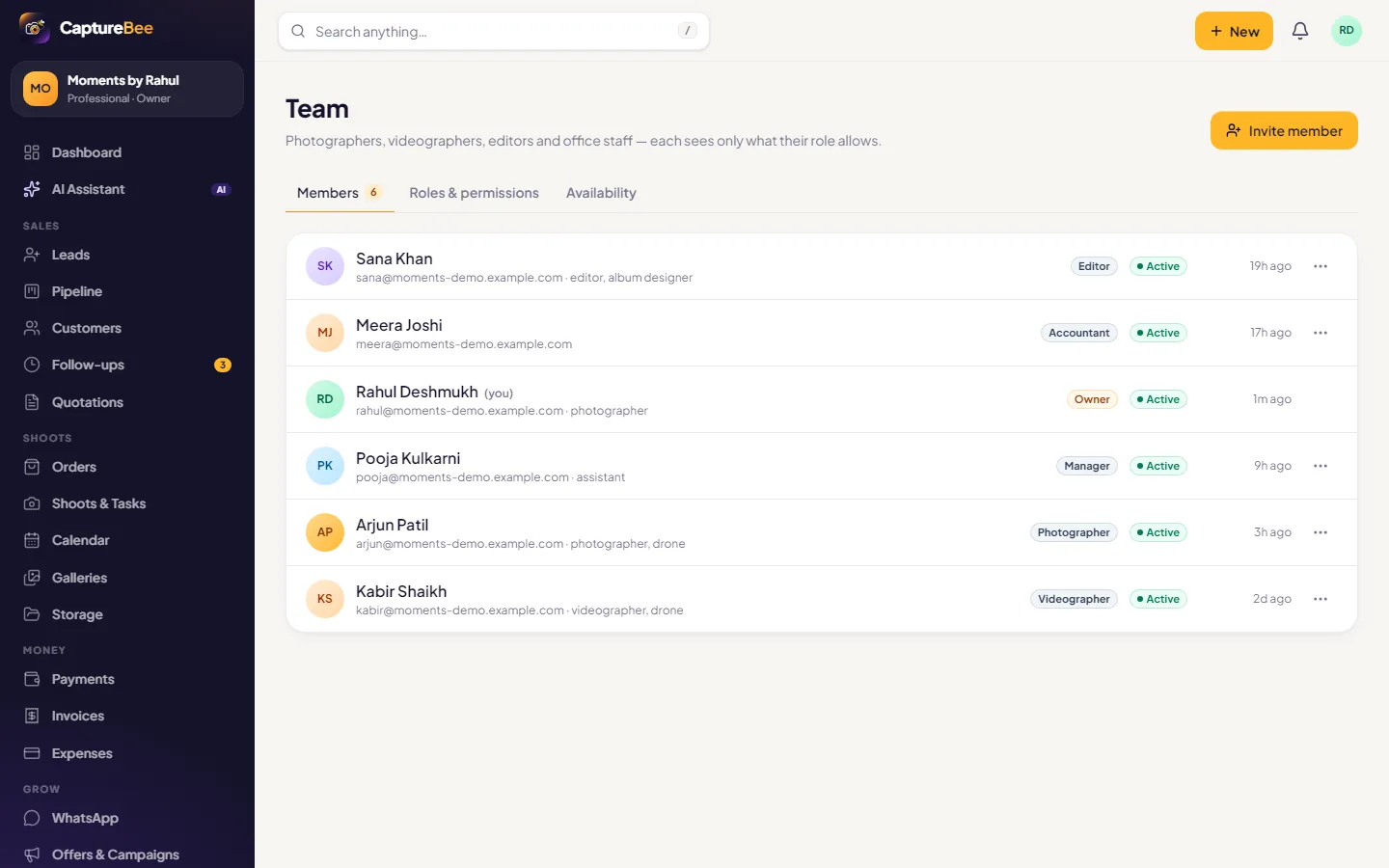
Invite people by email from the Team page and choose their role. They get an email to set their password and join. Each person has their own login, so every action — a payment recorded, a quotation sent, a selection approved — is linked to a real name.
- Resend an invite if it got lost in spam.
- Change a role as someone grows — an assistant becomes a manager.
- Remove access the day someone leaves. Their past work stays in the history.
Tip: Don't share one login among the team. Shared logins make it impossible to know who did what, and impossible to remove one person's access without changing everyone's password.
Working with freelancers
Freelancers are the backbone of wedding season. A few habits make it smoother for everyone:
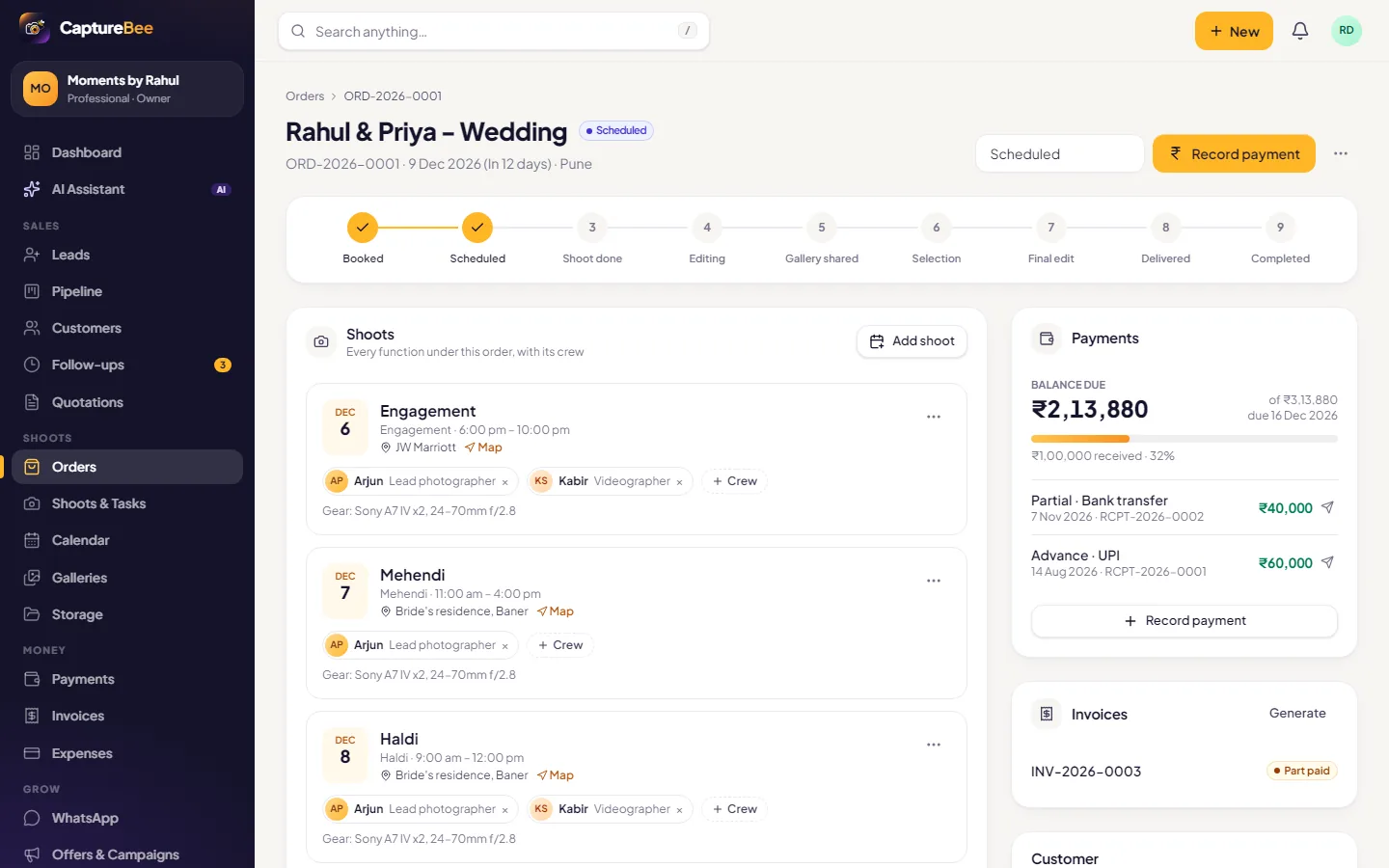
- Brief them in the system, not in voice notes. Assign them to the shoot with a role; they'll see the date, time, venue, map link, the rest of the crew, gear and notes.
- Agree the rate and deliverables in writing before the booking, including card handover and backup expectations.
- Give them the right role. Photographer or Videographer roles show only their own shoots and related galleries.
- Record what you pay them as an expense in the Freelancers category, linked to the order — so you know what each wedding really cost. See know your numbers.
- Remove access at the end of the season if you won't work together for a while.
Scheduling fairly and without clashes
When several people shoot for you, scheduling becomes its own job. Three things help:
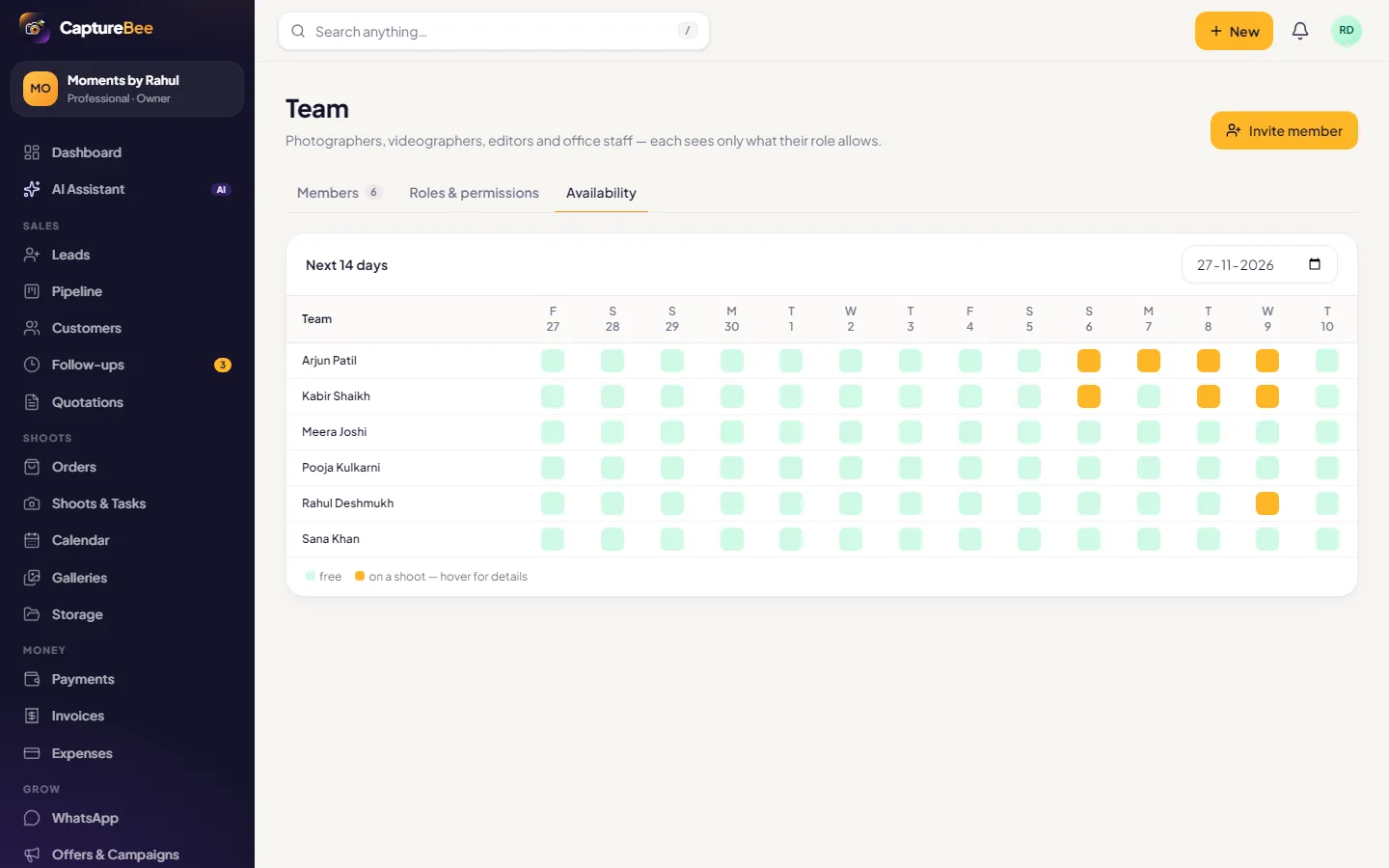
- Look at availability before you book. The Team page shows the next 14 days for everyone — free, or on a shoot.
- Let the system catch clashes. CaptureBee warns you if you assign someone to a shoot that overlaps another of their shoots.
- Spread the work. The availability grid makes it obvious when one second shooter is on every wedding and another is idle.
The details of planning functions and crew are in planning multi-day wedding shoots.
How each role works day to day
The assistant: first contact
An assistant who handles enquiries is often the most valuable hire a growing studio makes. With the Assistant role they can add leads, reply with templates, schedule and complete follow-ups, manage customers, see quotations and packages and check the calendar for availability — without seeing payments. Give each lead they handle an owner so nothing falls between people. See managing photography enquiries.
The manager: sales and production
A manager runs the business day to day: leads, quotations, orders, shoots, crew, galleries and the team schedule. The default Manager role can't change billing or settings, invite people or delete records — those stay with the owner.
Photographers and videographers: their own shoots
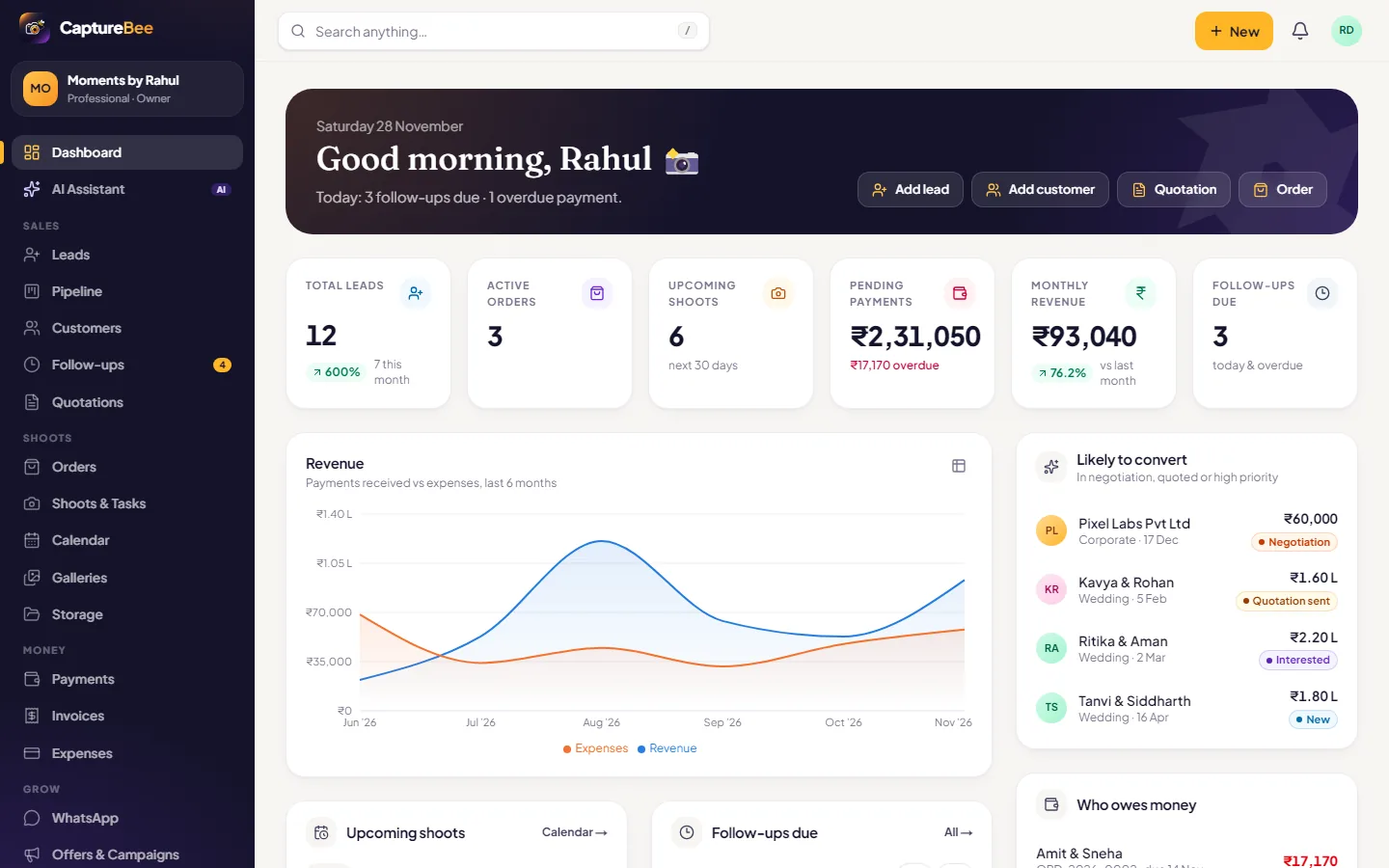
Crew members see the shoots they are assigned to, with everything they need for the day, and can upload photos, videos and files to those orders. The dashboard shows their own upcoming work. They are notified when they are assigned to a shoot, and reminded the day before.
Editors: galleries and files
Editors see the galleries and files for the orders they work on. They can upload edited photos, check the client's approved selection, copy the selected file names into Lightroom and upload final files for delivery. Tasks like "Edit selected 80 photos — due in 5 days" keep editing on schedule. See online photo selection and delivering photos securely.
The accountant: the money
With the Accountant role, your accountant sees payments, invoices, expenses and reports, can record payments and expenses, and send invoices and receipts — without access to galleries, shoots or settings. See invoices and receipts for photographers.
Notifications keep everyone in the loop
Instead of forwarding messages, let the system tell people what concerns them: a new lead, a quotation accepted, a payment received, a shoot assigned, a selection submitted, a follow-up due. Important ones — like being assigned to a shoot — are also emailed. Each person sees their own notifications in the app.
Accountability without micromanaging
Every important action is recorded in the activity log (Settings → Activity log): who recorded a payment, who sent a quotation, who changed a role, who approved a selection. You rarely need it — but when a client says "someone told us the balance was ₹20,000", you can see exactly what happened.
Customer and order timelines show the same story from the client's side: every note, message, payment and status change with who did it and when.
Hiring and onboarding a second shooter
A good second shooter makes your weddings better; a poor fit makes them stressful. A few steps make hiring less of a gamble:
Before you hire
- Look at complete galleries, not just their best ten photos. Consistency matters more than highlights.
- Check that their style fits yours — a documentary photographer and a heavily posed one will produce galleries that don't match.
- Ask about their gear (bodies, lenses, flashes) and whether it matches your colour workflow.
- Talk to a photographer they've worked with before.
Their first booking
- Start with a lower-pressure function — a mehendi or a reception — before the main ceremony.
- Pair them with your lead photographer, and agree who covers what.
- Review their full set afterwards and give specific feedback.
Onboarding checklist
- Invite them to CaptureBee with the Photographer (or Videographer) role
- Share your shot list and style notes
- Agree on camera settings that matter for your workflow (file format, time sync across cameras, naming)
- Explain card handover: when, how, and who backs up
- Agree on rate, payment timing and cancellations
- Agree on social media: can they post photos, and when (usually only after the client has seen them, and with your credit)
A freelancer brief template
Every freelancer should get the same information for every shoot. With crew assigned in CaptureBee, most of it is already on the shoot — but a short brief in the shoot notes fills the gaps:
Shoot: Haldi — Rahul & Priya When: Mon 8 Dec, 9:00 am – 12:00 pm (arrive 8:30) Where: Bride's residence, Baner (map link on the shoot) Your role: Lead photographer Family contact: Mrs. Joshi, +91 98220 77889 Must-have shots: first haldi application by the mother; grandmother with the bride; group photo with cousins Notes: outdoor, messy — use rain covers; family prefers no flash during the rituals Cards: hand over to Pooja at the end; don't format until backed up twice Dress code: smart casual, light colours (it's a haldi!)
A brief like this takes five minutes, and it's the difference between a freelancer who fits in and one who keeps asking questions on the day.
Paying freelancers fairly and on time
Freelancers talk to each other, and studios with a reputation for paying late struggle to find good people in peak season. A few habits help:
- Agree the rate before the booking — per function, per day or per hour — including what counts as overtime and who pays travel.
- Agree the payment timing — for example, within 7 days of handing over cards and files.
- Pay on time, every time. Put a reminder on your calendar or a task for each payout.
- Record every payout as an expense in the Freelancers category, linked to the order. You'll see what each wedding really cost, and your accountant will thank you.
- Keep a simple rate card for your regular freelancers, so quoting crew costs into your packages is easy.
Planning your team for peak season
The wedding season compresses a year of work into a few months, with many weddings landing on the same auspicious dates. Plan the team before the season starts, not during it:
- List the peak dates for the coming season as soon as you know them.
- Look at your bookings on the calendar — how many weddings per date, how many functions per day.
- Work out the crew you need for each date: lead photographers, second photographers, videographers, drone.
- Book your regular freelancers early for your busiest dates. Good second shooters fill up months ahead.
- Decide on a second team. If you're turning away weddings on peak dates, a second team led by a senior photographer may be worth it — but only if their work matches your standard.
- Plan editing capacity too. Ten weddings in two weeks means a lot of editing; book editors or extend delivery timelines in your terms.
- Check availability weekly on the Team page as new bookings come in.
Note: Weddings on the same peak date are where double-booking happens. Assign crew in the system as soon as a booking is confirmed — even provisionally — so the clash warning can do its job.
Team rhythms that keep everyone aligned
Tools hold the information; habits make sure people look at it. Two short routines work for most studios.
The weekly meeting (20 minutes)
Same day every week — Monday morning works well. With the calendar and dashboard on screen:
- This week's shoots — who's on which function, any changes in timing or venue, gear needs.
- Open follow-ups — leads and quotations that need a call, with an owner for each.
- Galleries and selections — which clients are selecting, which selections are waiting for approval.
- Editing and albums — what's due this week, what's at risk of running late.
- Money — overdue balances and who will follow up.
- Next week's preview — anything unusual coming up.
Everything decided becomes a task or a follow-up with an owner and a date — not a note in someone's diary.
The post-wedding debrief (10 minutes)
Within two days of a big wedding, a quick call with the crew:
- What went well? (Repeat it.)
- What went wrong? (Fix the process, not the person.)
- Anything the client mentioned — a moment they want, a photo to check?
- Card handover and backups — confirmed?
Add notes to the order's timeline so the editor and the album designer know what the family cares about.
Protecting client data with a team
A growing team means more people handling private family photos and personal details. A few practical rules:
- Personal logins only. Every team member has their own account; never share passwords.
- Least access. Give each person the role that fits their work, and nothing more.
- No personal copies. Freelancers hand over cards and files; they don't keep client photos on personal drives or phones after the job.
- Social media rules. Team members post client photos only with your approval, after the client has seen them, and with credit to the studio.
- Private links. Share galleries and deliveries through expiring links, not open drive folders. See delivering photos securely.
- Leavers lose access the same day — remove them from CaptureBee and from any other shared tools.
- Sign out everywhere if a phone or laptop is lost — Settings → My account & security lets each person sign out of every device at once.
Clients rarely ask about any of this, but they trust you with it. A studio that takes it seriously avoids the one mistake that can undo years of reputation.
Step by step in CaptureBee
- Team → Invite member: enter the email and choose a role.
- Roles & permissions: review the eight defaults; create a custom role if needed.
- Assign owners to leads and follow-ups for the assistant or manager.
- Add crew to shoots with roles; heed double-booking warnings.
- Create tasks for editing and album design with owners and due dates.
- Record freelancer payments as expenses linked to orders.
- Remove access the day someone leaves.
Mistakes to avoid
- One shared login. You lose accountability and control.
- Giving everyone full access. It's the easiest setup and the riskiest.
- Briefing crew only in WhatsApp groups. Plans change; groups don't update the plan.
- Shared drive links that never expire. Former freelancers keep access to client photos.
- No owner on leads. "Someone will call them" means nobody will.
- Not tracking freelancer costs. Your busiest month can be your least profitable.
Roles for common studio setups
Here's how the roles map onto typical studios.
Solo photographer with seasonal freelancers
| Person | Role |
|---|---|
| You | Owner |
| Second shooters (wedding season) | Photographer |
| Freelance videographer | Videographer |
| Freelance editor | Editor |
| Your accountant | Accountant |
Two partners running a studio
| Person | Role |
|---|---|
| Partner handling the business and money | Owner |
| Partner leading shoots and editing | Admin |
| Studio coordinator | Assistant |
| Regular second shooter and videographer | Photographer, Videographer |
| Album designer | Editor |
A larger studio with several teams
| Person | Role |
|---|---|
| Founder | Owner |
| Studio manager | Manager |
| Sales and enquiries | Assistant (or a custom "Sales" role that can also send quotations) |
| Team leads | Photographer — or a custom role that can see every shoot |
| Photographers, videographers, drone operators | Photographer, Videographer |
| Editing team | Editor |
| Accounts | Accountant |
Start with the defaults. Create a custom role only when someone genuinely needs a different set of permissions — and name it after the job ("Sales", "Team lead"), not the person.
A first-day walkthrough for each role
New team members learn a system fastest when someone shows them the five screens they'll actually use. A ten-minute walkthrough on their first day:
Photographers and videographers
- The dashboard — their upcoming shoots.
- A shoot — time, venue, map link, crew, gear and notes.
- The calendar with Only mine switched on.
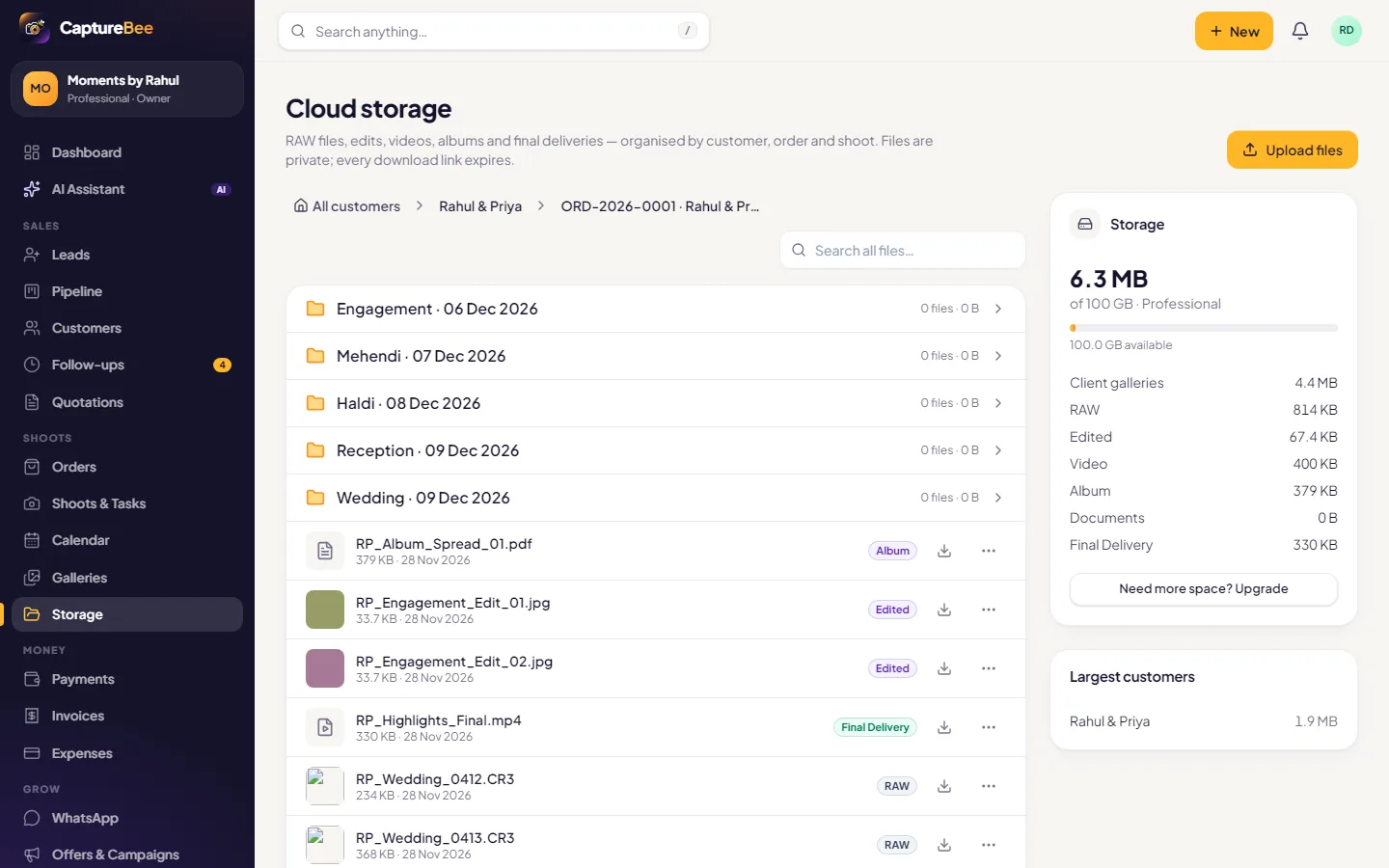
- Uploading files to an order's storage, in the right folder type.
- Notifications — where assignments and reminders appear.
Editors
- Galleries for their assigned orders.
- The Selection tab — approved selections and client comments.
- Copy file names into Lightroom.
- Tasks with due dates for editing and albums.
- Uploading finals to the Final Delivery folder.
Assistants
- Leads and the pipeline.
- The Follow-ups page — today, overdue, upcoming.
- Message and the templates.
- The calendar, to check availability before promising dates.
- Adding a lead from a pasted message.
Accountants
- Payments — To confirm, overdue, received.
- Invoices and their statuses.
- Expenses by category.
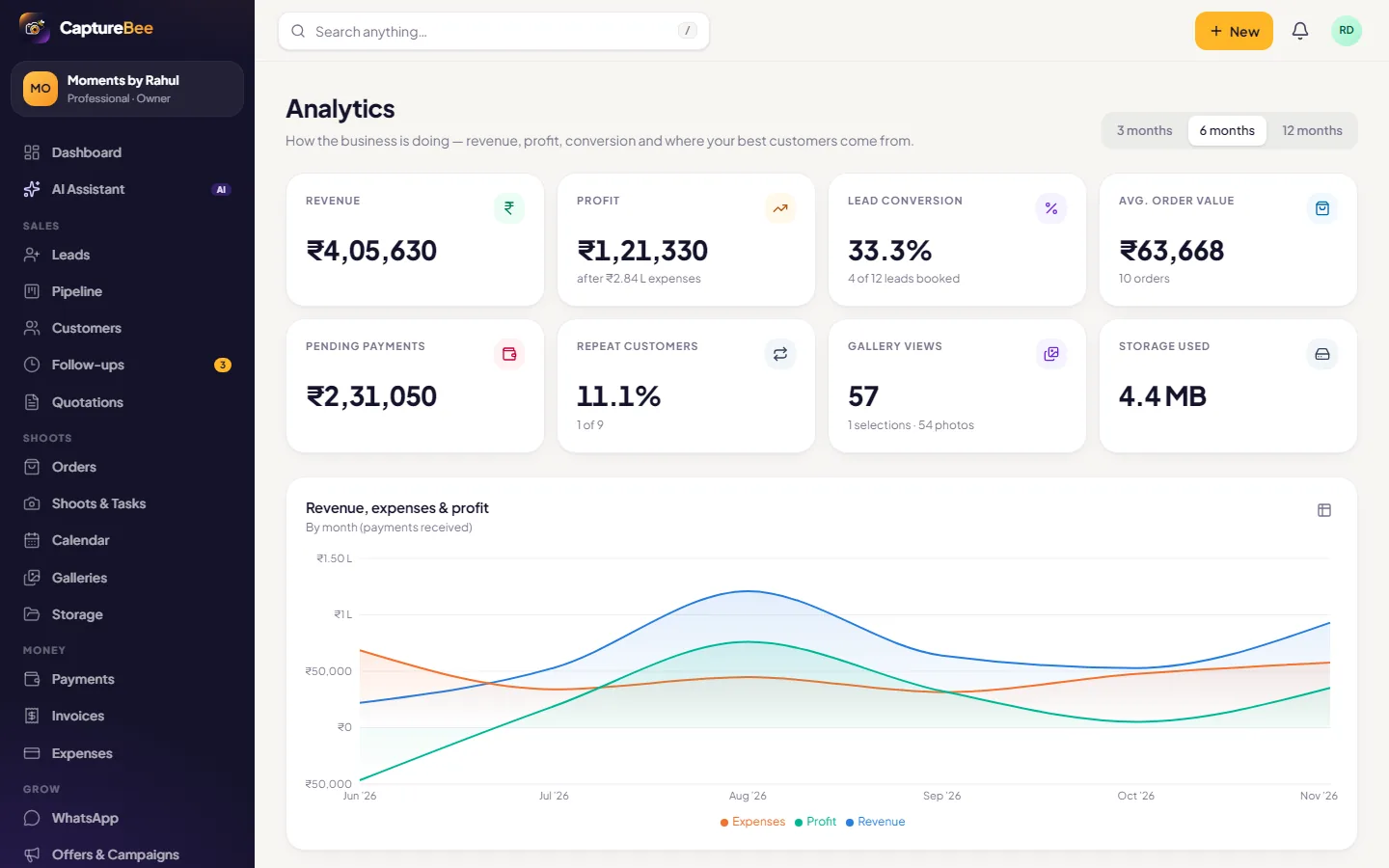
- Analytics for the month.
- Exports, if your plan includes them.
Point them to this guide and the features pages for the rest.
Quick checklist
- Every person has their own login — no shared accounts
- Each person has the role that matches their work, and nothing more
- Freelancers are briefed on the shoot itself: time, venue, map, crew, gear, notes
- Rates, payment timing and card handover are agreed before the booking
- Freelancer payouts are recorded as expenses against the order
- Peak dates are staffed before the season starts
- Crew are assigned in the system as soon as a booking is confirmed
- A weekly 20-minute team meeting with owners for every action
- Access is removed the day someone leaves
Frequently asked questions
How do I manage freelance photographers?
Give each freelancer their own login with a crew role (Photographer or Videographer), assign them to shoots with a role, keep the brief on the shoot itself, record what you pay them as an expense, and remove access when you stop working together.
Can a second shooter see my clients' payments?
Not with the Photographer, Videographer or Editor roles. Those roles see only their assigned shoots and the related galleries and files.
Can I create my own role?
Yes. Create a role and tick exactly the permissions it should have.
How many team members can I add?
It depends on your plan — see pricing.
What happens when I remove someone?
They can no longer log in. Their past actions stay in the history and activity log.
Can I see who did what?
Yes. Each person has their own login, timelines show who did each action, and the activity log records important actions for the owner.
Grow without losing control
A good team setup is simple: each person has their own login, a role that shows only what they need, an owner on every job, one place for every detail, and access that ends when the work ends. Get that right and adding people adds capacity, not chaos.
Start a free CaptureBee trial and invite your team with the right roles. Read next: planning multi-day wedding shoots.